

.
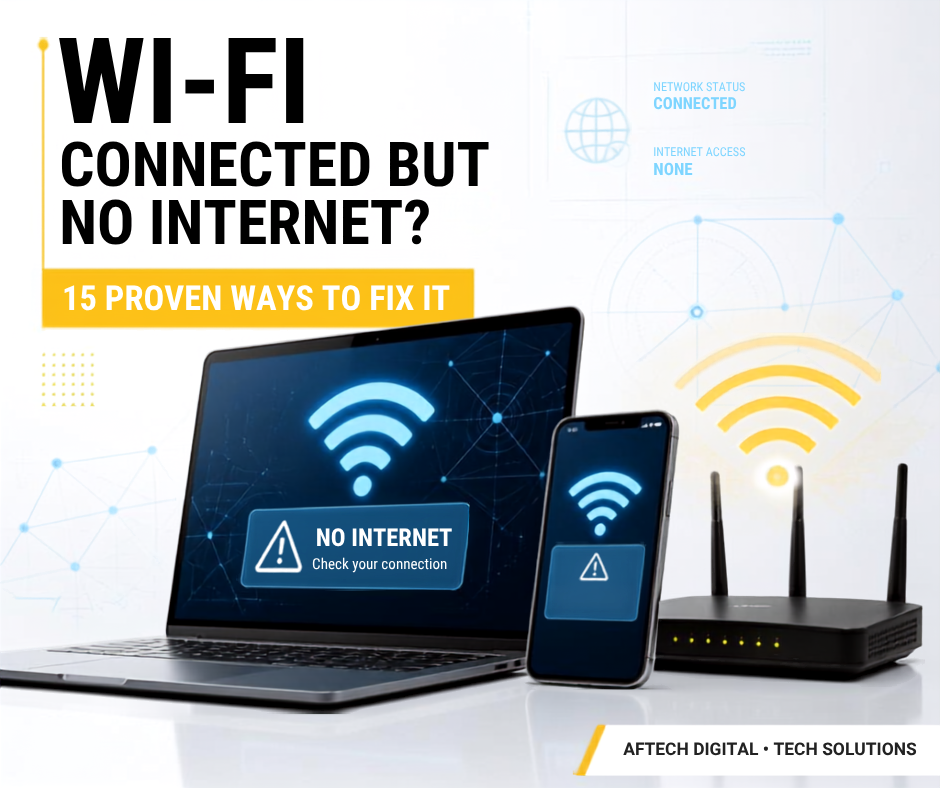
You connect your laptop to Wi-Fi.
You see the familiar Wi-Fi icon.
The signal appears strong.
But when you open Chrome, Edge, Firefox or another application, nothing loads.
You try another website.
Still nothing.
Then you check your phone and discover that it is connected to the same Wi-Fi network—but the internet isn’t working there either.
This situation is commonly described as:
“Wi-Fi connected but no internet.”
It can be frustrating because your device appears to be connected correctly.
The good news is that the problem doesn’t necessarily mean your laptop, phone or router is damaged.
The problem could be caused by your:
- Router
- Internet Service Provider (ISP)
- DNS
- IP configuration
- Wi-Fi adapter
- Network driver
- VPN
- Proxy
- Browser
- Device settings
- Network congestion
- Authentication
- DHCP configuration
Microsoft’s current Windows troubleshooting guidance recommends starting with basic network checks, reconnecting to Wi-Fi, restarting the router and using built-in troubleshooting tools before moving to more advanced network commands. (Microsoft Support)
In this guide, we’ll go step by step.
What Does “Wi-Fi Connected but No Internet” Mean?
There is an important difference between:
Connected to Wi-Fi
and
Connected to the Internet.
Your Wi-Fi connection is the connection between your device and the router.
Your internet connection is the connection between your router and your Internet Service Provider.
So your laptop can successfully communicate with your router while your router is unable to reach the internet.
Think of it like this:
Laptop → Wi-Fi → Router → ISP → Internet
If the connection breaks here:
Laptop → Wi-Fi → Router
your laptop may still say:
Connected
even though you cannot access websites.
Before You Start: Identify Where the Problem Is
This is the most important troubleshooting step.
Don’t immediately start changing DNS settings or running commands.
First ask:
Is the problem affecting one device or every device?
For example:
If only your laptop has no internet
The problem is probably related to:
- Laptop settings
- Wi-Fi adapter
- Driver
- DNS
- VPN
- Proxy
- Network configuration
If every device has no internet
The problem is more likely related to:
- Router
- Modem
- ISP
- Internet service
- WAN connection
This simple test can save you a lot of time.
1. Check Whether Other Devices Have Internet
Take another device connected to the same Wi-Fi.
For example:
- Smartphone
- Another laptop
- Tablet
- Smart TV
Try opening a website.
If another device works
Your router and internet connection are probably functioning.
Focus on the device that isn’t working.
If no device works
The problem may be with your router, modem or ISP.
This distinction is one of the most useful ways to troubleshoot network problems.
2. Turn Wi-Fi Off and Back On
This sounds too simple, but it is worth trying first.
On your phone or computer:
Turn Wi-Fi off.
Wait a few seconds.
Then:
Turn Wi-Fi back on.
Reconnect to your network.
This forces the device to establish a fresh wireless connection.
3. Restart Your Device
Restart the phone, laptop or PC experiencing the problem.
A restart can clear temporary network states and restart networking services.
If you are troubleshooting a Windows computer, Microsoft also recommends restarting and reconnecting as part of general Wi-Fi troubleshooting. (Microsoft Support)
Don’t underestimate simple troubleshooting steps.
Many technology problems are temporary rather than permanent.
4. Restart Your Router
If multiple devices cannot access the internet, restart your router.
Do this safely:
- Turn off the router.
- Disconnect its power.
- Wait approximately 30 seconds.
- Reconnect the power.
- Turn the router back on.
- Wait several minutes.
- Try connecting again.
Microsoft recommends power-cycling the modem/router and waiting for the equipment to fully reconnect before testing the computer again. (Microsoft Support)
Important
Don’t press the tiny Reset button unless you actually intend to reset the router to factory settings.
A restart and a factory reset are completely different things.
5. Check Your Router’s Internet/WAN Status
Look at the router.
Depending on the model, you may see lights for:
- Power
- Wi-Fi
- Internet
- WAN
- DSL
- Fiber
- Ethernet
If the internet/WAN indicator shows an abnormal state, the router may not be receiving service from your ISP.
This is especially important if:
every device connected to the router has the same problem.
6. Forget the Wi-Fi Network and Reconnect
Sometimes your device’s saved network configuration becomes problematic.
In that situation, forgetting the network and reconnecting can help.
Windows
Go to:
Settings → Network & Internet → Wi-Fi → Manage known networks
Select your Wi-Fi network.
Choose:
Forget
Then reconnect and enter the Wi-Fi password again.
Microsoft specifically recommends forgetting and reconnecting to a known Wi-Fi network as part of Windows troubleshooting. (Microsoft Support)
On smartphones
Open your Wi-Fi settings.
Select your network.
Choose:
Forget network
Then reconnect.
7. Check Airplane Mode
This sounds obvious, but it’s worth checking.
Make sure:
Airplane Mode = OFF
and:
Wi-Fi = ON
Some devices can behave strangely when connectivity settings have been changed repeatedly.
8. Check Whether Your Device Has a Valid IP Address
Your device needs an IP address to communicate properly on the network.
On Windows, open Command Prompt and run:
ipconfigLook for your Wi-Fi adapter.
You should normally see an IPv4 address assigned by your router.
If you see an address beginning with:
169.254that can indicate that Windows did not successfully obtain an IP address from the router.
Microsoft specifically identifies a 169.254.x.x address as a sign that Windows may not have obtained an IP address from the router through DHCP. (Microsoft Support)
9. Renew Your IP Address
If your device is having trouble obtaining a valid network address, you can ask Windows to obtain a new one.
Open:
Command Prompt as Administrator
Then run:
ipconfig /releasePress Enter.
Then:
ipconfig /renewPress Enter.
Wait for the command to complete.
Then test your internet connection again.
Microsoft includes releasing and renewing the IP configuration among its recommended troubleshooting steps for Windows connectivity problems. (Microsoft Support)
10. Flush Your DNS Cache
DNS translates domain names such as:
google.com
into IP addresses that computers use to communicate.
Sometimes DNS information stored on your computer becomes outdated or problematic.
On Windows, open Command Prompt as Administrator and run:
ipconfig /flushdnsYou should receive a message indicating that the DNS Resolver Cache was successfully flushed.
Then try opening a website again.
Microsoft includes DNS cache flushing as one of its troubleshooting steps for limited Windows connectivity. (Microsoft Support)
11. Restart the Windows Network Stack
If the problem persists, Windows provides commands that can reset parts of its networking configuration.
Open:
Command Prompt as Administrator
Then run:
netsh winsock resetAfter the command completes, restart your computer.
Important
Don’t randomly execute networking commands you find online.
Commands can change network configuration.
Use them when you understand what they do and follow a reliable troubleshooting sequence.
12. Check Your VPN
VPN applications can interfere with internet connectivity.
If you’re using:
- NordVPN
- Proton VPN
- Surfshark
- ExpressVPN
- A corporate VPN
- Another VPN service
temporarily disconnect it and test the connection.
If the internet immediately starts working, the VPN configuration may be involved.
Also check:
VPN → Disconnect
Then test:
Browser → Website
If everything works normally without the VPN, investigate the VPN settings rather than changing your entire network configuration.
13. Check Proxy Settings
A manually configured proxy can prevent normal internet access.
On Windows, check:
Settings → Network & Internet → Proxy
If you don’t intentionally use a proxy, review whether a manual proxy configuration has been enabled.
Microsoft includes checking proxy settings among its recommended steps when Windows is connected to Wi-Fi but cannot access the internet. (Microsoft Support)
14. Check the Wi-Fi Adapter
Sometimes Windows recognizes the computer but the Wi-Fi adapter isn’t functioning correctly.
Open:
Device Manager
Then:
Network adapters
Find your wireless adapter.
It may have a name similar to:
- Intel Wireless
- Realtek Wireless
- Qualcomm Wireless
- MediaTek Wireless
If the adapter is disabled, enable it.
You can also check whether Windows reports a driver problem.
Microsoft recommends checking the Wi-Fi adapter and WLAN-related services when the Wi-Fi option is missing or the wireless adapter isn’t behaving correctly. (Microsoft Support)
15. Update or Reinstall the Network Driver
An outdated, corrupted or incompatible network driver can cause connectivity problems.
Check your laptop manufacturer’s support page for the correct driver.
Common manufacturers include:
- Dell
- HP
- Lenovo
- ASUS
- Acer
- MSI
- Samsung
Important
Don’t download random drivers from suspicious websites.
Use the manufacturer’s official support page whenever possible.
What If Wi-Fi Works but the Internet Is Extremely Slow?
This is a different problem.
You may technically have internet access, but the connection may be too slow for normal use.
Possible causes include:
- Weak Wi-Fi signal
- Router distance
- Walls and interference
- Too many connected devices
- Background downloads
- ISP congestion
- Network bandwidth usage
- Router limitations
- VPN overhead
Microsoft recommends checking signal strength, investigating bandwidth-heavy background processes and testing another device when diagnosing slow Wi-Fi. (Microsoft Support)
Move Closer to the Router
If your Wi-Fi signal is weak, move closer to the router.
Avoid placing your router:
- Inside a cabinet
- Behind large appliances
- In a basement corner
- Behind thick concrete walls
- Next to sources of interference
The physical environment can significantly affect wireless performance.
Check Other Devices Using Your Network
Imagine you’re trying to attend an important video meeting.
Meanwhile:
- Someone is downloading a large game.
- Another person is streaming 4K video.
- Someone else is uploading hundreds of photos.
- A smart TV is downloading an update.
Your connection may become extremely slow.
Check how many devices are connected to your router.
If your router supports it, review connected devices through its administration interface.
What If Wi-Fi Says “Connected, No Internet” on Your Phone?
The troubleshooting process is similar.
Start with:
Step 1
Turn Wi-Fi off and back on.
Step 2
Forget the network.
Step 3
Reconnect.
Step 4
Restart the phone.
Step 5
Restart the router.
Step 6
Test another device.
If every device has the same problem, investigate the router/ISP.
If only your phone has the problem, investigate the phone’s network settings.
What If Wi-Fi Says “Connected, No Internet” on Your Laptop?
For Windows, follow this sequence:
1. Check another device
2. Restart the laptop
3. Restart Wi-Fi
4. Forget and reconnect
5. Restart router
6. Run Windows network troubleshooting
7. Check IP configuration
8. Renew IP
9. Flush DNS
10. Check VPN
11. Check proxy
12. Check Wi-Fi adapter
13. Update network driver
This sequence starts with the safest and easiest fixes before moving into advanced troubleshooting.
Don’t Immediately Reset Your Router
A common mistake is pressing the router’s physical reset button as soon as the internet stops working.
Don’t do that unless necessary.
A factory reset can remove:
- Wi-Fi name
- Wi-Fi password
- ISP configuration
- Port settings
- DHCP configuration
- DNS configuration
- Firewall settings
- Custom network settings
You may turn a simple internet outage into a complete router reconfiguration problem.
Restart first. Reset only when you know why you’re resetting it.
How to Know Whether the Problem Is Your ISP
Your Internet Service Provider may be the actual source of the problem.
Look for these signs:
- Every device has no internet.
- Router Wi-Fi still works.
- Router shows an internet/WAN problem.
- Restarting the router doesn’t help.
- The problem started suddenly.
- Your ISP has an outage.
- Your account/service has a problem.
If all devices lose internet simultaneously, contact your ISP or check its official service-status channels.
A Simple Troubleshooting Decision Tree
Use this whenever your Wi-Fi stops working.
Question 1:
Is Wi-Fi turned on?
If no → turn it on.
If yes → continue.
Question 2:
Does another device have internet?
If yes → troubleshoot the affected device.
If no → troubleshoot the router/ISP.
Question 3:
Does restarting the router fix it?
If yes → continue using the connection.
If no → continue.
Question 4:
Does forgetting and reconnecting to Wi-Fi fix it?
If yes → problem solved.
If no → continue.
Question 5:
Does the computer have a valid IP address?
If no → investigate DHCP/network configuration.
If yes → continue.
Question 6:
Does DNS work correctly?
If no → investigate DNS.
If yes → continue.
Question 7:
Is a VPN or proxy active?
If yes → disable it temporarily and test.
Question 8:
Is the problem happening on every device?
If yes → investigate the router or ISP.
Common Mistakes People Make When Fixing Wi-Fi
Mistake 1: Restarting the computer repeatedly
If the router has no internet connection, restarting your laptop 20 times won’t fix the ISP problem.
Mistake 2: Immediately changing DNS
DNS can be useful to troubleshoot, but don’t change it before determining whether you even have an IP/network problem.
Mistake 3: Factory-resetting the router
This can create additional problems.
Mistake 4: Downloading random network drivers
Use official manufacturer sources.
Mistake 5: Assuming strong Wi-Fi means working internet
You can have excellent Wi-Fi signal strength and still have no internet connection.
Mistake 6: Ignoring other devices
Testing another phone or laptop is one of the fastest ways to identify whether the problem is local or network-wide.
When Should You Call a Technician?
You should consider professional help when:
- The router repeatedly loses its WAN connection.
- Fiber/DSL equipment reports an abnormal signal.
- The router won’t stay powered on.
- Network hardware appears damaged.
- Multiple devices continuously lose connectivity.
- The ISP confirms the line is working but the problem persists.
- You have a complex business network.
- You don’t understand the configuration you’re changing.
For business networks, changing random settings can create larger problems.
The 5-Minute Wi-Fi Fix Checklist
When you’re in a hurry, use this checklist:
1. Check another device
Is the internet working elsewhere?
2. Restart Wi-Fi
Turn it off and on.
3. Restart your device
Give the operating system a fresh start.
4. Restart the router
Power it off, wait, then restart it.
5. Forget and reconnect
Remove the saved Wi-Fi network and reconnect.
If that doesn’t work, continue with:
6. Check IP address
7. Renew IP
ipconfig /release
ipconfig /renew
8. Flush DNS
ipconfig /flushdns9. Check VPN/proxy
10. Investigate the ISP
Final Thoughts
A Wi-Fi connection that says “Connected” doesn’t necessarily mean that your device has access to the internet.
The connection actually involves several stages:
Your device → Wi-Fi → Router → ISP → Internet
The failure can happen at any one of these points.
That’s why randomly changing settings isn’t the best approach.
Instead, troubleshoot logically.
Start with the simplest questions:
Does another device work?
Does the router have internet?
Does my computer have a valid IP address?
Can DNS resolve websites?
Is a VPN or proxy interfering?
Is the ISP experiencing an outage?
Once you identify where the connection stops, the solution becomes much easier.
And remember:
Don’t troubleshoot randomly. Find where the connection breaks first.
That single habit can save you hours of frustration.
Frequently Asked Questions
Why does my Wi-Fi say connected but have no internet?
Your device may be connected successfully to the router while the router itself cannot reach the internet. The problem could involve the ISP, router, IP configuration, DNS, VPN, proxy or another network setting.
Why does Wi-Fi work on my phone but not my laptop?
The internet connection itself is probably working. The issue is more likely specific to your laptop, such as its Wi-Fi adapter, driver, DNS, proxy, VPN or network configuration.
Why does Wi-Fi not work on any device?
If every device connected to the same router has no internet, investigate the router, modem, WAN connection and ISP before changing settings on individual devices.
Does restarting the router really help?
Yes. Restarting can re-establish the router’s connection to the ISP and clear temporary network states. Microsoft recommends restarting the modem/router as part of general Windows Wi-Fi troubleshooting. (Microsoft Support)
What does a 169.254 IP address mean?
A 169.254.x.x address can indicate that Windows wasn’t able to obtain an IP address from the router through DHCP. (Microsoft Support)
Should I change my DNS?
Changing DNS can sometimes solve DNS-related problems, but it should not be the first thing you change. First establish whether the problem is DNS-related.
Should I reset my router?
Not immediately. Try restarting it first. A factory reset can erase your network configuration.
Why is my Wi-Fi slow even though the signal is strong?
A strong Wi-Fi signal doesn’t guarantee fast internet. Network congestion, ISP performance, background downloads, router limitations and other factors can affect speed.
📌 Quick Reference: Windows Network Commands
Use Command Prompt as Administrator when required.
Check network configuration
ipconfigRelease IP address
ipconfig /releaseRequest a new IP address
ipconfig /renewClear DNS cache
ipconfig /flushdnsReset Winsock
netsh winsock resetRestart Windows after using the Winsock reset.