

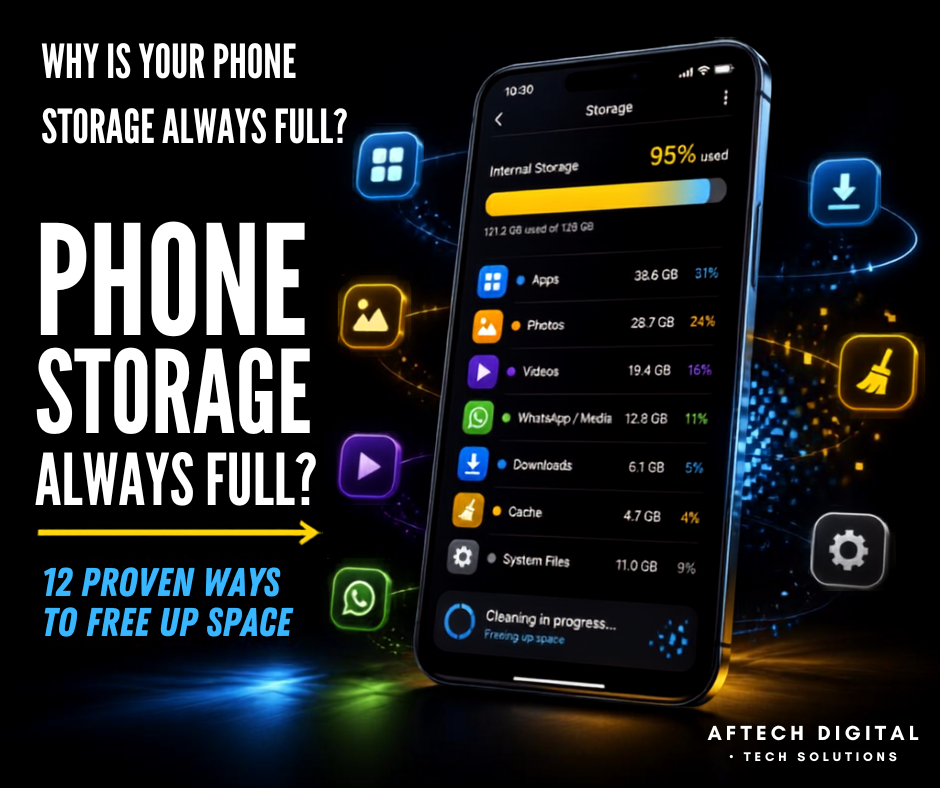
Have you ever deleted dozens—or even hundreds—of photos from your phone, only to check your storage a few minutes later and discover that your phone is still almost full?
You are not alone.
A phone can run out of storage even when your photo gallery doesn’t look particularly large. Applications, cached files, downloaded videos, messaging media, offline content, documents, system data and other hidden files can gradually consume your available space.
In fact, recent analysis of more than 59,000 Google search impressions related to phone-storage problems found that searches around app/system storage and large applications represented the biggest portions of the demand, while photos and videos represented only a much smaller share. (Cleanor Research Labs)
That means the common advice—“Just delete your photos”—doesn’t always solve the real problem.
This guide explains why your phone keeps running out of storage and exactly what you can do about it, whether you’re using Android or iPhone.
Quick Answer: Why Is My Phone Storage Always Full?
Your phone storage may keep filling up because of:
- Large applications
- App cache
- App data
- WhatsApp media
- Telegram downloads
- Offline YouTube or Netflix videos
- Downloaded music
- Screen recordings
- Large documents
- Duplicate files
- Recently deleted files
- System files and temporary data
- Old downloads
- Games
- Video-editing projects
- Photos and videos
The important thing is to identify what’s actually using your storage before deleting anything important.
1. First Find Out What Is Actually Using Your Storage
Before deleting files randomly, check your phone’s storage breakdown.
This is the most important step.
On Android
Depending on your phone manufacturer, go to:
Settings → Storage
Some phones may instead use:
Settings → Battery and Device Care → Storage
or a similar option.
Android provides built-in storage-management tools that allow you to see categories and identify what is consuming your space. (Google Help)
You may see categories such as:
- Apps
- Images
- Videos
- Audio
- Documents
- System
- Other
Look at the biggest category first.
Example
Suppose your phone has 128 GB of storage:
| Category | Storage Used |
|---|---|
| Apps | 38 GB |
| Videos | 19 GB |
| Photos | 8 GB |
| 12 GB | |
| Downloads | 7 GB |
| System/Other | 25 GB |
If you immediately delete photos, you might recover only 8 GB.
But if you investigate your applications, downloads and messaging media, you could potentially recover much more.
2. Android: Check Which Apps Are Eating Your Storage
One of the biggest storage problems is simply large applications.
Some apps are surprisingly large because they contain:
- Downloaded content
- Cached media
- Offline files
- Temporary files
- User data
- Databases
- Editing projects
Games are particularly common examples.
A game might start at 1–2 GB and grow substantially after updates and downloaded resources.
How to check
Go to:
Settings → Apps → See all apps
Then check the storage size of your largest applications.
On some devices:
Settings → Apps → App name → Storage
You may see:
App size + User data + Cache
This tells you where the space is going.
3. Clear App Cache—but Understand What You’re Deleting
Many people see:
Clear Cache
and
Clear Storage/Data
and assume they’re the same thing.
They aren’t.
Clear Cache
Cache consists of temporary data created by applications.
Clearing it can recover some storage.
Android explains that clearing an app’s cache removes temporary data, while clearing storage removes the application’s stored data. (Google Help)
Clear Storage/Data
This is much more serious.
It can remove the application’s locally stored information and reset the application.
Therefore:
If you’re simply trying to recover temporary storage, start with Clear Cache.
Don’t randomly select Clear Storage/Data for important applications.
4. WhatsApp Could Be Consuming More Storage Than Your Photos
If you use WhatsApp heavily, check it before deleting your personal photos.
WhatsApp conversations can accumulate:
- Videos
- Images
- Voice messages
- Documents
- GIFs
- Stickers
- Forwarded media
One busy group can generate hundreds of megabytes—or several gigabytes—over time.
What to check
Open WhatsApp and go to:
Settings → Storage and Data → Manage Storage
Look for:
Large files
These are usually the easiest targets.
Frequently forwarded files
You may discover media you have received many times.
Large conversations
Check which chats are consuming the most storage.
You don’t necessarily need to delete the entire conversation.
Instead, remove unnecessary large media.
5. Telegram Can Quietly Fill Your Phone
Telegram is another major source of hidden storage usage.
If you belong to many:
- Channels
- Groups
- Learning communities
- Business communities
- Video channels
- Technology groups
your device may accumulate large amounts of cached media.
This is especially common if automatic media downloading is enabled.
Check Telegram
Open:
Telegram → Settings → Data and Storage → Storage Usage
Review cached media and remove content you no longer need.
Important
Clearing cached Telegram media doesn’t necessarily mean losing your conversations.
The content can generally be downloaded again when needed, depending on the type of content and your Telegram settings.
6. Check Your Downloads Folder
Your Downloads folder can become a digital warehouse.
Think about all the things you’ve downloaded over the past year:
- PDFs
- ZIP files
- APK files
- Videos
- Images
- Word documents
- PowerPoint presentations
- Software installers
- E-books
- Course materials
- Duplicate files
You may have files that you completely forgot about.
Android
Open your Files or File Manager application.
Go to:
Downloads
Then sort files by size if your file manager supports it.
Start with the largest files.
7. Remove Offline Videos, Music and Maps
Streaming applications often allow you to download content for offline use.
That’s convenient—but it can consume enormous amounts of storage.
Check applications such as:
- YouTube
- YouTube Music
- Netflix
- Spotify
- Google Maps
- Podcast applications
- Music applications
For example, a few high-quality offline videos can occupy several gigabytes.
Android’s official storage guidance specifically recommends removing downloaded movies, music and other media you no longer need. (Google Help)
Ask yourself:
“Do I really need this downloaded offline?”
If the answer is no, remove it.
8. Your Recently Deleted Files May Still Be Taking Space
This is one of the easiest things to overlook.
You delete a photo.
But instead of being permanently removed, your phone may move it into:
Recently Deleted
or
Trash/Bin
The same can happen with:
- Videos
- Files
- Documents
- Screenshots
So after deleting large files, check your trash.
On your phone
Open:
Gallery → Trash / Recently Deleted
Then check:
Files → Trash / Bin
If you’re absolutely certain you don’t need the files, permanently remove them.
9. iPhone Users: Check iPhone Storage
If you’re using an iPhone, Apple provides a dedicated storage-management screen.
Go to:
Settings → General → iPhone Storage
Apple’s current support documentation says this section shows how much storage each app uses and may provide recommendations for optimizing available storage. (Apple Support)
You’ll see a breakdown of your storage.
For example:
- Apps
- Photos
- Messages
- Media
- iCloud Drive downloads
- System Data
- Other
Tap an application to see more details.
10. Use Offload Unused Apps on iPhone
One useful iPhone feature is Offload Unused Apps.
Offloading removes the application itself while keeping its documents and data so you can reinstall it later.
Apple explains that this can free storage while preserving the app’s documents and data. (Apple Support)
This is particularly useful for applications you rarely use.
Instead of keeping 20 applications installed simply because you might use them someday, allow your iPhone to manage unused apps.
11. Don’t Confuse iPhone Storage With iCloud Storage
This causes a lot of confusion.
Your iPhone has:
Device storage
The physical storage inside the phone.
For example:
64 GB / 128 GB / 256 GB / 512 GB
And then there is:
iCloud storage
Cloud storage associated with your Apple account.
They are not the same thing.
Apple specifically distinguishes device storage from iCloud storage and provides separate controls for each. (Apple Support)
So buying more iCloud storage doesn’t automatically increase the physical storage capacity of your iPhone.
12. Don’t Delete Important System Files
This is where people can get into trouble.
When browsing your file manager, you may see folders with names you don’t recognize.
You might think:
“I don’t know what this is, so I should delete it.”
Don’t.
Unknown files may belong to:
- Android
- Applications
- System services
- Databases
- Backups
- Security systems
- Authentication
- Device configuration
Deleting them blindly can cause applications to malfunction or create other problems.
Golden rule:
If you don’t know what a system file does, don’t delete it just because it looks large.
Research it first.
Why Is My Phone Storage Full After Deleting Photos?
This is one of the most frustrating situations.
You delete 2,000 photos.
Your storage still says:
“Storage Almost Full.”
Why?
Because your photos may not have been the biggest storage consumer.
For example:
Before cleanup
- Apps: 40 GB
- WhatsApp: 15 GB
- Videos: 12 GB
- Photos: 10 GB
- Downloads: 8 GB
- System/Other: 30 GB
You delete all 10 GB of photos.
But your phone still has:
105 GB used out of 128 GB.
The solution isn’t necessarily to delete more photos.
You need to investigate the other categories.
Recent search-demand research supports this exact problem: app/system storage and large apps were much larger categories of storage-related searches than photo cleanup. (Cleanor Research Labs)
Why Does “System Data” Take So Much Space?
This is particularly confusing for iPhone users.
You may see a category called:
System Data
or similar system-related storage.
It can include things such as:
- Caches
- Logs
- Temporary files
- System resources
- Indexes
- Other operating-system data
Apple explains that the storage category labeled “Other” can include logs, caches, Spotlight index data and other system-related assets, while “System” represents space occupied by the operating system itself. (Apple Support)
What should you do?
Don’t start deleting random system files.
Instead:
- Restart the device.
- Install pending system updates if appropriate.
- Remove unnecessary downloads.
- Review large apps.
- Clear unnecessary app content.
- Check browser data.
- Give the operating system time to recalculate storage.
If the problem becomes extreme and persistent, proper backup and more advanced troubleshooting may be necessary.
Why Is My Phone Slow When Storage Is Almost Full?
Storage and performance are not exactly the same thing, but extremely low free storage can contribute to problems.
Your phone needs working space for:
- Temporary files
- Application operations
- Updates
- Caches
- System processes
Google’s Android guidance specifically notes that keeping storage from becoming critically low can help avoid problems, and its storage-management tools are designed to help users free space. (Google Help)
So don’t wait until your phone reaches:
0 MB available
before doing maintenance.
How to Free Up Phone Storage Safely
Here’s the order I recommend.
Step 1 — Check your storage
Find the biggest categories.
Step 2 — Remove large videos
Especially screen recordings and downloaded videos.
Step 3 — Review WhatsApp
Delete unnecessary large media.
Step 4 — Review Telegram
Clear cached downloads you don’t need.
Step 5 — Clean Downloads
Remove old ZIP files, PDFs, APKs and duplicate documents.
Step 6 — Check offline media
Remove downloaded movies, music and videos.
Step 7 — Uninstall unused applications
Start with large applications you haven’t used recently.
Step 8 — Clear safe app caches
Especially applications that have accumulated huge temporary files.
Step 9 — Empty Trash
Check Gallery and File Manager.
Step 10 — Restart your phone
Then check storage again.
A Simple 15-Minute Phone Storage Cleanup
If you need space urgently, follow this checklist.
Minutes 1–2: Check storage
Find your top three storage consumers.
Minutes 3–5: Check videos
Delete unnecessary recordings and downloads.
Minutes 6–8: Check WhatsApp
Remove large unnecessary media.
Minutes 9–10: Check Telegram
Clear cached media.
Minutes 11–12: Check Downloads
Delete old large files.
Minutes 13–14: Remove unused apps
Uninstall applications you no longer use.
Minute 15: Empty Trash
Then restart your phone.
You may be surprised by how much space you recover without touching your important photos.
Should You Install a Phone Cleaner App?
Not necessarily.
Your phone already includes storage-management tools.
Android provides built-in tools for:
- Checking storage
- Removing files
- Uninstalling apps
- Clearing app cache
- Archiving unused applications
- Managing downloaded content (Google Help)
iPhone also provides built-in storage recommendations and application-level storage management. (Apple Support)
Therefore, before installing an unknown “cleaner,” ask:
Do I actually need another application to do something my phone already does?
Be particularly careful with applications requesting extensive permissions.
When Should You Consider a Factory Reset?
A factory reset should be a last resort, not your first solution.
Consider more advanced troubleshooting only when:
- Storage remains inexplicably full
- The phone is seriously malfunctioning
- Normal cleanup doesn’t solve the problem
- You have already investigated the storage categories
- You have backed up your important information
Never factory-reset a phone without thinking about your data first.
Make sure you have properly backed up:
- Photos
- Contacts
- Documents
- WhatsApp data
- Important messages
- Work files
- Authentication information
- Other irreplaceable data
A factory reset is fundamentally different from simply deleting temporary files.
How to Prevent Your Phone From Filling Up Again
Cleaning your phone once is useful.
Preventing the problem is even better.
1. Review your storage monthly
Spend five minutes checking your storage every month.
2. Control automatic media downloads
Especially on messaging applications.
3. Clean WhatsApp regularly
Don’t wait until WhatsApp occupies 20 GB.
4. Review Telegram cache
Especially if you’re subscribed to many channels.
5. Remove offline downloads
Delete videos and music you no longer need.
6. Keep your Downloads folder organized
Don’t allow thousands of files to accumulate.
7. Uninstall applications you no longer use
If you haven’t opened an application in months, ask whether you really need it.
8. Back up important files
Backups make it easier to remove unnecessary local copies safely.
9. Don’t keep duplicate videos
Especially edited versions of the same video.
10. Monitor your storage before it becomes critical
Prevention is easier than emergency cleanup.
What About Cloud Storage?
Cloud storage can be useful for reducing the amount of content stored locally.
For example, you might use a trusted cloud service to back up:
- Photos
- Documents
- Videos
- Work files
But remember:
Cloud storage and device storage are different things.
Having cloud storage doesn’t automatically increase the physical capacity of your phone. Apple explicitly distinguishes iCloud storage from device storage. (Apple Support)
Before deleting a local file after uploading it, make sure the backup actually completed and that you can access the file from the cloud.
The Biggest Mistake People Make When Cleaning Phone Storage
The biggest mistake is deleting things randomly.
A better approach is:
Measure → Identify → Prioritize → Clean → Verify
Measure
How much storage is available?
Identify
What is using the most?
Prioritize
Which large files can safely be removed?
Clean
Delete unnecessary content.
Verify
Check your storage again.
This approach is safer and much more efficient.
Phone Storage Cleanup Checklist
Save this checklist.
Before deleting anything:
☐ Check storage usage
☐ Identify the largest categories
☐ Back up important files
☐ Check WhatsApp
☐ Check Telegram
☐ Check Downloads
☐ Check offline videos
☐ Check large applications
☐ Check recently deleted files
☐ Review app cache
Avoid:
☐ Randomly deleting system files
☐ Clearing app data without understanding it
☐ Installing suspicious cleaner apps
☐ Factory-resetting without a backup
☐ Deleting important files just to gain a few gigabytes
Frequently Asked Questions
Why does my phone keep saying storage is full?
Your phone may be accumulating application data, cache, downloads, videos, messaging media, system data or other files. Check your storage breakdown rather than assuming photos are responsible.
Why is my phone storage full even after deleting photos?
Photos may represent only a small portion of your total storage. Large apps, WhatsApp, Telegram, downloads and system-related data can continue consuming space. (Cleanor Research Labs)
Does clearing cache delete my photos?
Normally, clearing an application’s cache removes temporary files belonging to that application. It does not mean deleting your entire photo library. However, always check what you’re clearing before confirming.
Is “Clear Data” the same as “Clear Cache”?
No.
Clear Cache removes temporary data.
Clear Storage/Data can remove the application’s stored data and reset it. Android explicitly distinguishes these two actions. (Google Help)
How do I check storage on Android?
Usually:
Settings → Storage
The exact location can vary by manufacturer. (Google Help)
How do I check storage on iPhone?
Go to:
Settings → General → iPhone Storage
Apple provides a breakdown of storage usage and recommendations in this section. (Apple Support)
Should I delete System Data?
No—not blindly.
System-related storage can contain caches, logs, indexes and other operating-system resources. Investigate the cause instead of deleting unknown system files. (Apple Support)
Will deleting apps free storage?
Yes. Removing unused applications can recover the space occupied by the app and, depending on the platform and method, associated data. Android and iPhone both provide built-in ways to remove or offload apps. (Google Help)
Final Thoughts
A “Storage Almost Full” notification doesn’t automatically mean that you need a new phone.
And it doesn’t necessarily mean that you need to delete your memories.
The real solution is to understand where your storage is going.
Start with the storage dashboard.
Find the largest categories.
Then investigate your applications, WhatsApp, Telegram, downloads, offline media, large videos and unnecessary files.
Most importantly, don’t delete files blindly.
Your phone already provides powerful tools for managing storage, and both Android and iPhone offer built-in ways to identify and remove unnecessary content. (Google Help)
The next time your phone says:
“Storage Almost Full”
don’t panic.
Don’t immediately delete your photos.
Find the real storage problem first.
Then clean it strategically.
📌 Quick Reference
Android:Settings → Storage
iPhone:Settings → General → iPhone Storage
First things to investigate:
- Large apps
- Telegram
- Videos
- Downloads
- Offline media
- App cache
- Recently deleted files
- Unused applications
- System/Other storage
The golden rule:
Don’t delete everything. Find what’s actually taking the space.